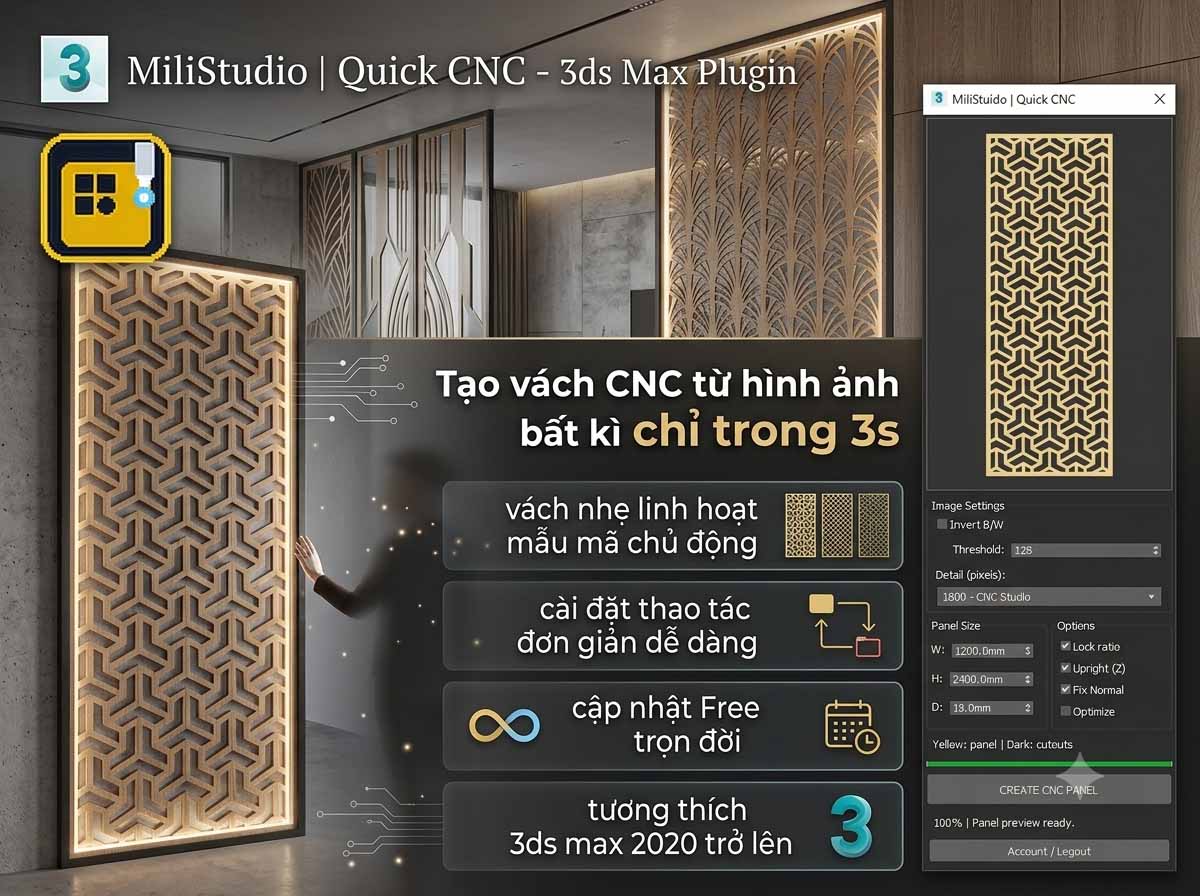
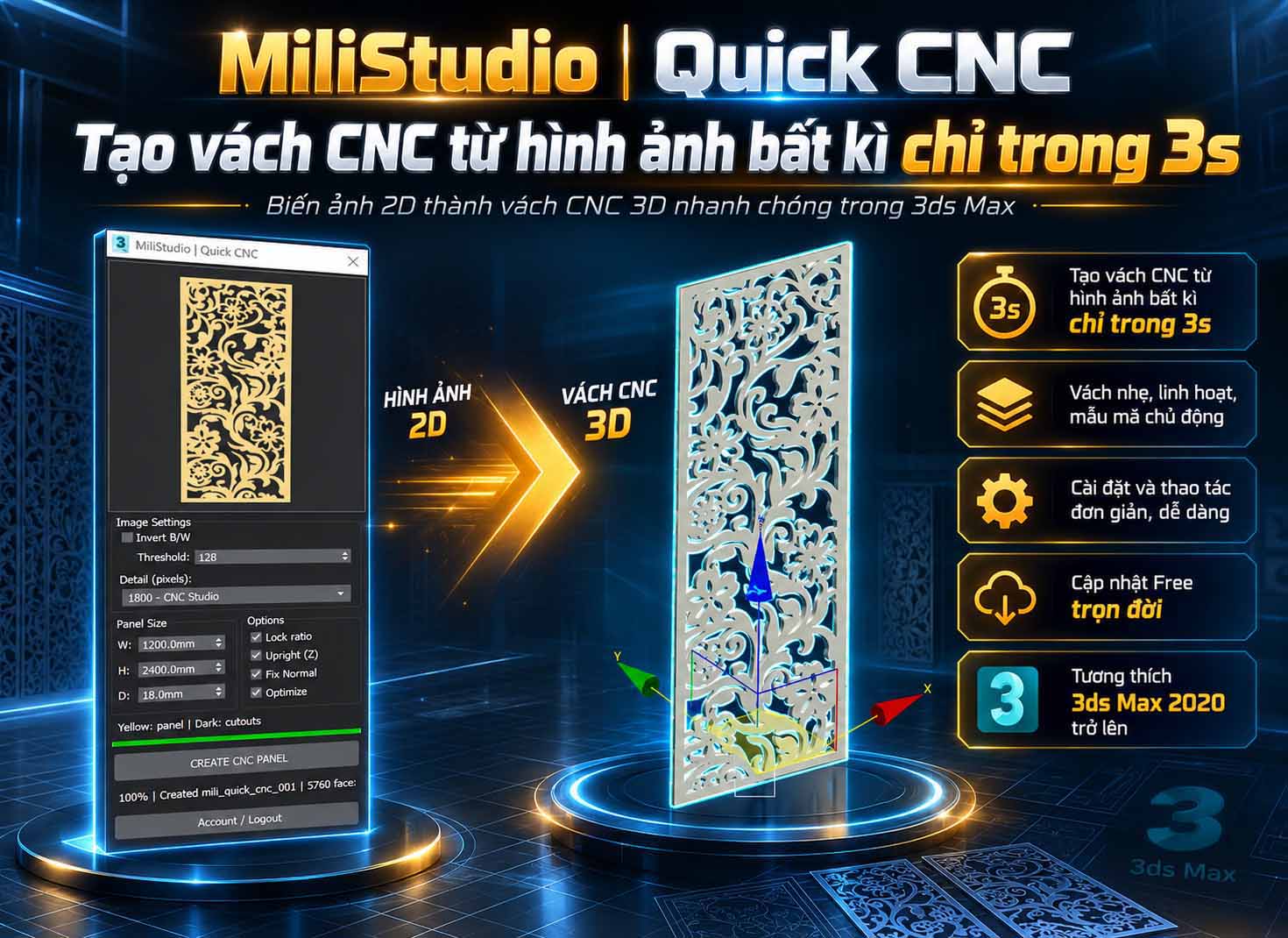
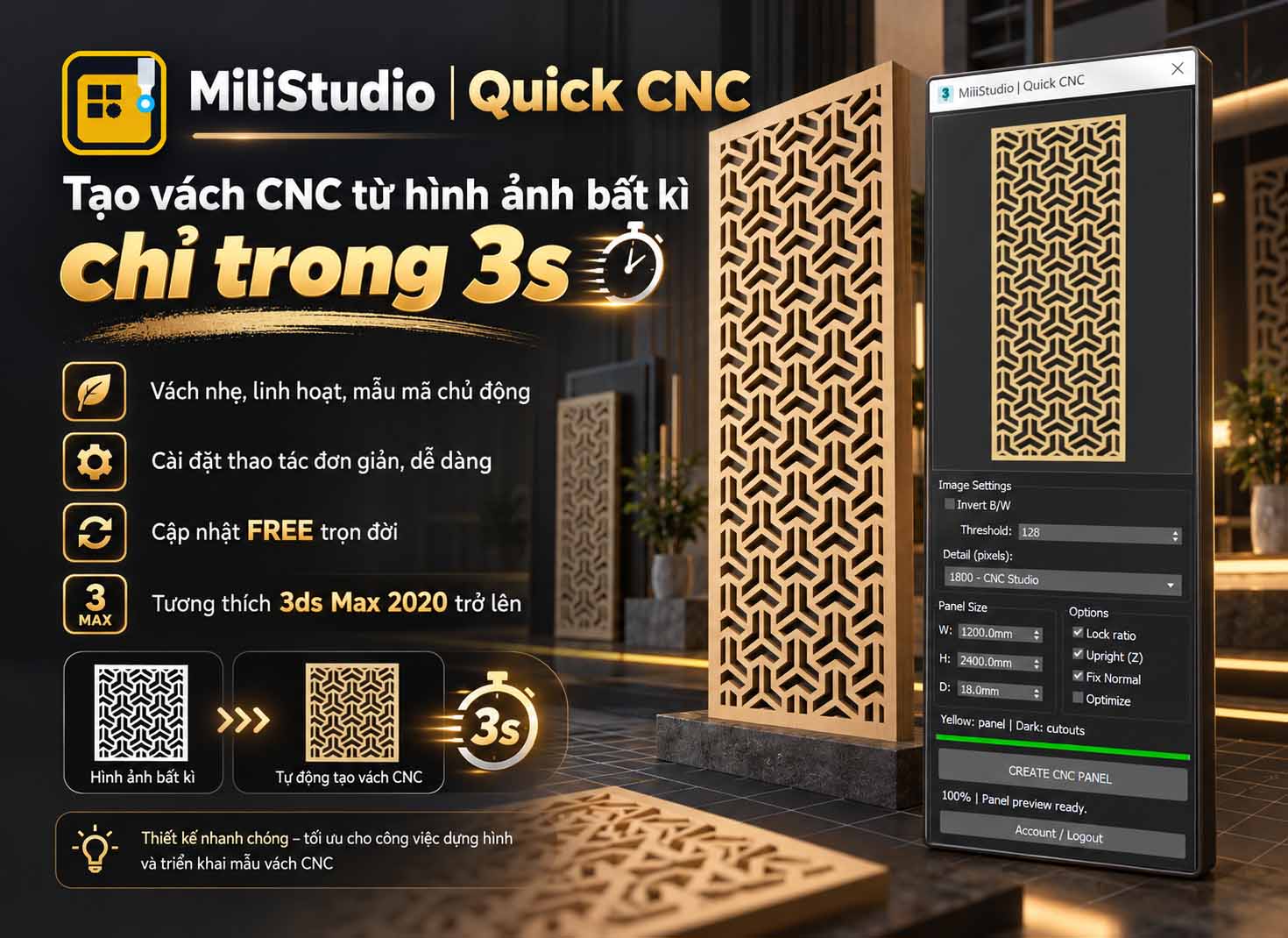
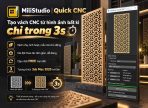
Quick CNC Panel by MiliStudio turns black-and-white image patterns into decorative panel geometry in Autodesk 3ds Max. Preview the material and cutouts, set the panel dimensions, and create an Editable Poly object.
Flexible image input: double-click the preview, drag an image file onto it, or right-click for Choose Image File, Paste Clipboard, and Clear Image.
Automatic preview: adjust Threshold, Invert B/W, and Detail to update the pattern. Yellow represents panel material; dark areas represent cutouts.
Panel dimensions: set width, height, and depth in scene units, with an optional aspect-ratio lock.
Placement and finishing: enable Upright (Z), Fix Normal, or Optimize. Created objects use the mili_quick_cnc_ prefix.
Reusable processed geometry: cached image results help avoid repeating vector processing when creating panels at different sizes.
Saved settings: restore options, dimensions, window position, and the last image. The last panel can be recognized when its saved scene is available.
This tool creates 3D geometry; it does not generate machine toolpaths or G-code.
Setup and Launch
Keep the supplied QuickCNC script files in a local folder.
In 3ds Max, choose Scripting > Run Script and open QuickCNC.ms for the account edition, or QuickCNC_trial.ms for the trial edition.
For the account edition, sign in with the account that has access to Quick CNC Panel. Use Account / Logout to view your account or sign out.
The image-processing engine requires Node.js. If the script asks for it, select your installed or portable node.exe.
The trial edition has a 30-day trial period. Available image formats depend on the image readers installed in 3ds Max; selecting All Files does not guarantee every format can be decoded.
How to Use
Prepare a clear, high-contrast pattern. By default, black pixels become material and white pixels become cutouts.
Double-click the preview to choose an image, or right-click and select Paste Clipboard to use a copied image. Input is processed automatically.
Adjust Threshold, Invert B/W, and Detail, then inspect the yellow panel preview. Higher detail may take longer to process.
Set W, H, and D. Enable Lock ratio to preserve the image proportions.
Choose Upright (Z) for a standing panel above the grid. Optionally enable Fix Normal to clear smoothing groups or Optimize to apply mesh optimization with Auto Edge.
Click CREATE CNC PANEL. The result is converted to Editable Poly. Save your 3ds Max scene to retain the generated object.
Use Clear Image in the preview menu to remove the current image and its cached preview. This does not delete existing scene objects.