-77%
QuickMaterial
158,000 ₫ Original price was: 158,000 ₫.79,000 ₫Current price is: 79,000 ₫.
AI Model 3D Generator
558,000 ₫ Original price was: 558,000 ₫.279,000 ₫Current price is: 279,000 ₫.
ToolBoxV4
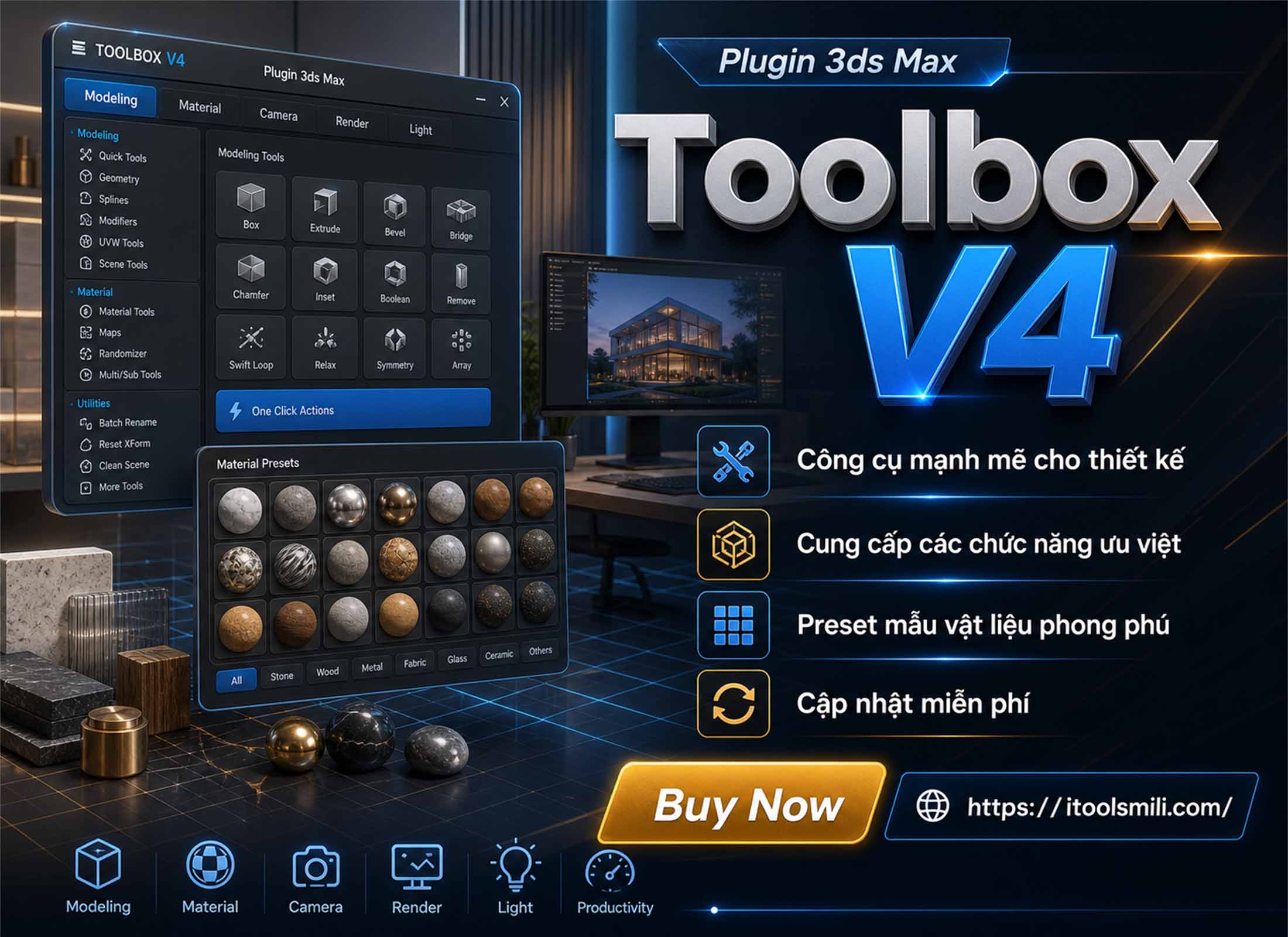
▶MiliStudio ToolBox V4 Plugin Overview
Release date: July 30, 2026
MiliStudio ToolBox V4 is a productivity toolkit for Autodesk 3ds Max.
It helps speed up common workflows for modeling, scene management, materials, cameras, lighting, rendering, importing, exporting, and file cleanup.
The plugin brings many daily 3ds Max actions into one compact toolbox, helping artists reduce repetitive work and handle scenes faster during production.
General information:
- Plugin name: MiliStudio ToolBox V4.
- Platform: Autodesk 3ds Max on Windows.
- Installer format:
.mzppackage downloaded from the MiliStudio website. - Developer: MiliStudio.
- Main purpose: combine modeling, file management, copy/paste, material, camera, light, and render tools into one compact toolbox.
- Basic operation: choose the required tool group, select the correct object or component in 3ds Max, then click the matching button in ToolBox V4.
Main features:
- Import / Export: import files, export files, manage file lists, and merge assets into the current scene.
- Open and Save: open files, open clipboard paths, save files, save to lower 3ds Max versions, collect assets, and prune scenes.
- Copy and Paste: copy and paste models, copy with maps, paste with relinked maps, and quickly import DWG or SKP temporary files.
- Modeling Object: attach, detach, weld vertices, clean edges, copy/paste material UV, process splines, and run common poly operations.
- Modifier Tools: quickly add modifiers such as Extrude, Edit Poly, Shell, Slice, Symmetry, FloorGenerator, Chamfer, TurboSmooth, UVW Map, and FFD.
- Camera Tools: create Corona Cameras from the viewport, create new cameras, set up 360 cameras, and fix camera targets.
- Light and IES: create Corona Lights quickly from selected faces or objects.
- Render Setting: switch viewport modes, load Corona/V-Ray render presets, show textures, and open material conversion tools.
- Material Library: access material groups such as Wood Mtl Floor, Brick Mtl Floor, Stone and Marble, Walnut Wood Mtl, and Trans Stone Mtl.
- Help / Extra: dock the toolbox, update data, open the user guide, check updates, open Firewall / Defender settings, and use extraction tools.
Tool groups included in ToolBox V4:
- Import / Export: File Import, File Export, Files, None, All, Merge.
- Open and Save: Open File, Open Clipboard, Save File, Save Low, Collect Save, Prune Save.
- Copy and Paste: Copy Max, Paste Max, Copy With Map, Paste With Map, Paste ACad, Paste SKP.
- Modeling Object: Attach, Detach, Vertex Weld, Make Regular, Scrap Verts, Clean Edge, Box Light, Box Wood, Copy/Paste Mtl UV, Attach/Detach Spline, Chamfer/Extrude Edge Loop, Convert Poly, Pick UVW Map, Connect.
- Modifier Tools: Extrude, Edit Poly, Shell, Edit Mesh, Slice, Edit Spline, Symmetry, FloorGenerator, Chamfer, Bevel Profile, TurboSmooth, Unwrap UVW, UVW Map, FFD 2x2x2, FFD 3x3x3, FFD 4x4x4.
- Camera Tools: From View, New Cam, Auto Cam 360, Fix Camera.
- Light and IES: Quick Light Settings and Quick Light by Face.
- Render Setting: Clay Switch, Two Light, Set Corona, Set Vray, ShowOne-Tex, ShowAll-Tex, Mtl Corona, Mtl Vray, Open Corona Convert, Open Vray Convert.
- Material: Wood Mtl Floor, Brick Mtl Floor, Stone and Marble, Walnut Wood Mtl, Trans Stone Mtl.
System requirements:
- Windows 10 / Windows 11 64-bit.
- Autodesk 3ds Max.
- Corona Renderer or V-Ray is required for matching render, camera, light, and material tools.
- Some features may require helper plugins or scripts such as FloorGenerator, PolyTools, WinRAR, or 7-Zip, depending on your workflow.

▶Installation and Startup
Installation steps:
- Download the
.mzpinstaller from the MiliStudio website. - Drag and drop the
.mzpfile into the 3ds Max viewport, or go to Scripting > Run Script… and select the downloaded.mzpfile. - Wait for the installer to finish. The ToolBox V4 toolbar button will be added to 3ds Max automatically.
- Click the ToolBox V4 toolbar button to open the plugin.
No manual extraction is required. After installation, the plugin can be launched directly from the MiliStudio toolbar inside 3ds Max.
▶Main Feature Guide
Basic workflow:
- Open 3ds Max, then launch MiliStudio ToolBox V4 from the toolbar created during installation.
- Select the tool group you want to use in the ToolBox V4 interface.
- For tools that affect objects or components, select the correct object, spline, face, edge, camera, or material before clicking the tool button.
- Use Import / Export to import, export, select, or merge multiple files into the current scene.
- Use Open and Save to open files, save files, collect assets, or clean scenes quickly.
- Use Copy and Paste to transfer models between scenes, including optional texture/map copying and relinking.
- Use Modeling Object and Modifier Tools for modeling, mesh editing, spline editing, UV operations, and modifier setup.
- Use Camera Tools, Light and IES, and Render Setting to prepare cameras, lighting, viewport modes, render presets, and materials.
- Use the Material tab to quickly create or apply material library presets by category.
ToolBox V4 is useful for:
- 3ds Max users who often work on interiors, architecture, products, model libraries, or production scenes.
- Designers and 3D visualization artists who need to work quickly across many scenes, assets, and material sets.
- Users who need faster copy/paste, asset collection, texture relinking, scene cleanup, and merge workflows.
- Teams that want a shared toolbox for consistent modeling, file saving, render setup, and data management workflows.
When using the plugin, read the tooltip of each button inside ToolBox V4. Some buttons support right-click actions for alternate commands.
Feature details by tool group:
Import / Export
- File Import: import a file into the current scene.
- File Export: export selected objects or scene data to an external file.
- Files: choose a file list for processing; right-click to clear the list.
- None / All: deselect or select all items in the list.
- Merge: merge the selected file; right-click to merge and automatically convert to V-Ray.
- Archive workflow: helps extract archives and locate
.maxfiles before merging when assets are stored in compressed packages.
Open and Save
- Open File: open a 3ds Max file; right-click to open the folder of the current file.
- Open Clipboard: open the path currently stored in the clipboard.
- Save File: save the current Max file.
- Save Low: save to a lower 3ds Max version with a version suffix.
- Collect Save: collect assets and save the scene.
- Prune Save: clean the scene and save the file.
Copy and Paste
- Copy Max / Paste Max: copy and paste the selected model without map relinking.
- Copy With Map / Paste With Map: copy the model with textures/maps and paste with relinked paths.
- Paste ACad: import the latest DWG file from the temporary folder.
- Paste SKP: import
C:\Temp\3dsmax_temp.skp. - Temporary path: copy/paste data is stored in the preferred temporary folder used by MiliStudio ToolBox V4.
Modeling Object
- Combine or separate objects with Attach and Detach.
- Clean geometry with Vertex Weld, Make Regular, Scrap Verts, and Clean Edge.
- Create quick strip/box helpers with Box Light and Box Wood.
- Copy material and UVW modifier data with Copy Mtl UV and Paste Mtl UV.
- Process splines with Attach Spl and Detach Spl.
- Work with edge loops using Chamfer E Loop, Extrude E Loop, and Connect.
- Convert objects to Editable Poly or add UVW Map quickly with Convert Poly and Pick UVW Map.
Modifier Tools
- Add common modeling modifiers quickly: Extrude, Shell, Slice, Symmetry, Chamfer, Bevel Profile, TurboSmooth, and FloorGenerator.
- Add editing modifiers quickly: Edit Poly, Edit Mesh, and Edit Spline.
- Add UV and deformation modifiers: Unwrap UVW, UVW Map, FFD 2x2x2, FFD 3x3x3, and FFD 4x4x4.
Camera Tools
- From View: create a Corona Camera from the current viewport.
- New Cam: create a new Corona Camera.
- Auto Cam 360: set the selected camera as a 360 camera.
- Fix Camera: align the camera target to the nearest X/Y axis direction.
Light and IES
- Set quick light parameters in Quick Light Settings.
- Use Quick Light by Face to create a Corona Light from the selected face or object.
Render Setting
- Clay Switch and Two Light: switch viewport display modes.
- Set Corona and Set Vray: load render presets into Render Setup.
- ShowOne-Tex and ShowAll-Tex: show textures for the selected object or the whole scene.
- Mtl Corona and Mtl Vray: create material sets in the Material Editor.
- Open Corona Convert and Open Vray Convert: open the matching material conversion script.
Material
- Wood Mtl Floor: wood floor material library.
- Brick Mtl Floor: brick material library.
- Stone and Marble: stone and marble material library.
- Walnut Wood Mtl: walnut wood material library.
- Trans Stone Mtl: translucent stone material library.
Help / Extra
- Setting: dock the toolbox left or right, close the toolbox, load data, update data, and enable Open_with_3DsMax.
- Update: check for updates, open the license page, and open the Support Us tool.
- How to Use: open the ToolBox V4 user guide.
- Extract Tools: apply display settings, hidden-file settings, and open Firewall / Defender settings.
Common issues and checks:
- If the Import / Export list does not show files, check the selected files and supported file formats.
- If old files still appear in the list box, clear the list by right-clicking the Files button.
- If Copy With Map does not show textures after pasting, check the temporary copy/paste folder and write permissions.
- If Quick Light does not create a light, check the selected object/face and make sure Corona Renderer is available.
- If render presets do not load, check the renderer, preset path, and your 3ds Max version.
- If some modifier buttons do not work, check required helper plugins such as FloorGenerator or the current selection state.
▶License and Support Policy
License information:
- The plugin is developed by MiliStudio.
- MiliStudio ToolBox V4 is a workflow support tool for 3ds Max users.
- Do not redistribute, resell, modify, or republish the plugin without permission from the author.
- Some features may depend on third-party software, plugins, scripts, or renderers. Users are responsible for the licenses of those external components.
- Feedback, suggestions, and support requests can be sent through the official MiliStudio website or support channels.
Quick links:
- iToolsMili website:
https://itoolsmili.com/ - MiliStudio Facebook:
https://www.facebook.com/milistudioThuviengooccho/ - Zalo support:
https://zalo.me/0349780903 - iToolsMili website:
https://itoolsmili.com/
`r`n
`r`n
558,000 ₫ Original price was: 558,000 ₫.129,000 ₫Current price is: 129,000 ₫.
Guaranteed Safe Checkout