CNC_Studio for 3Ds Max
CNC_Studio for 3Ds Max Original price was: 558,000 ₫.Current price is: 99,000 ₫.
Back to products
CreateStair
CreateStair Original price was: 558,000 ₫.Current price is: 129,000 ₫.

CNC_Studio for SketchUp

1. Plugin Information

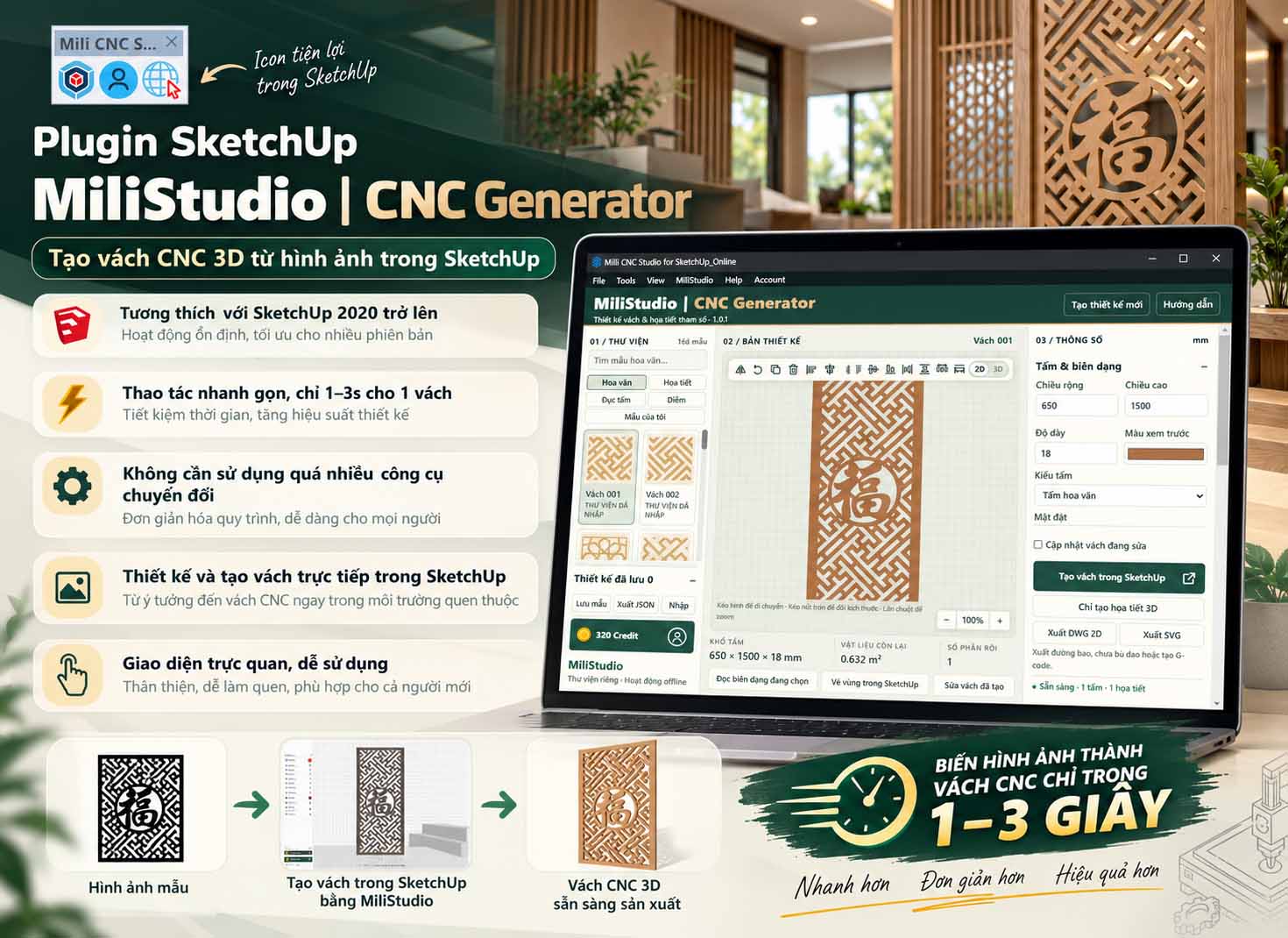
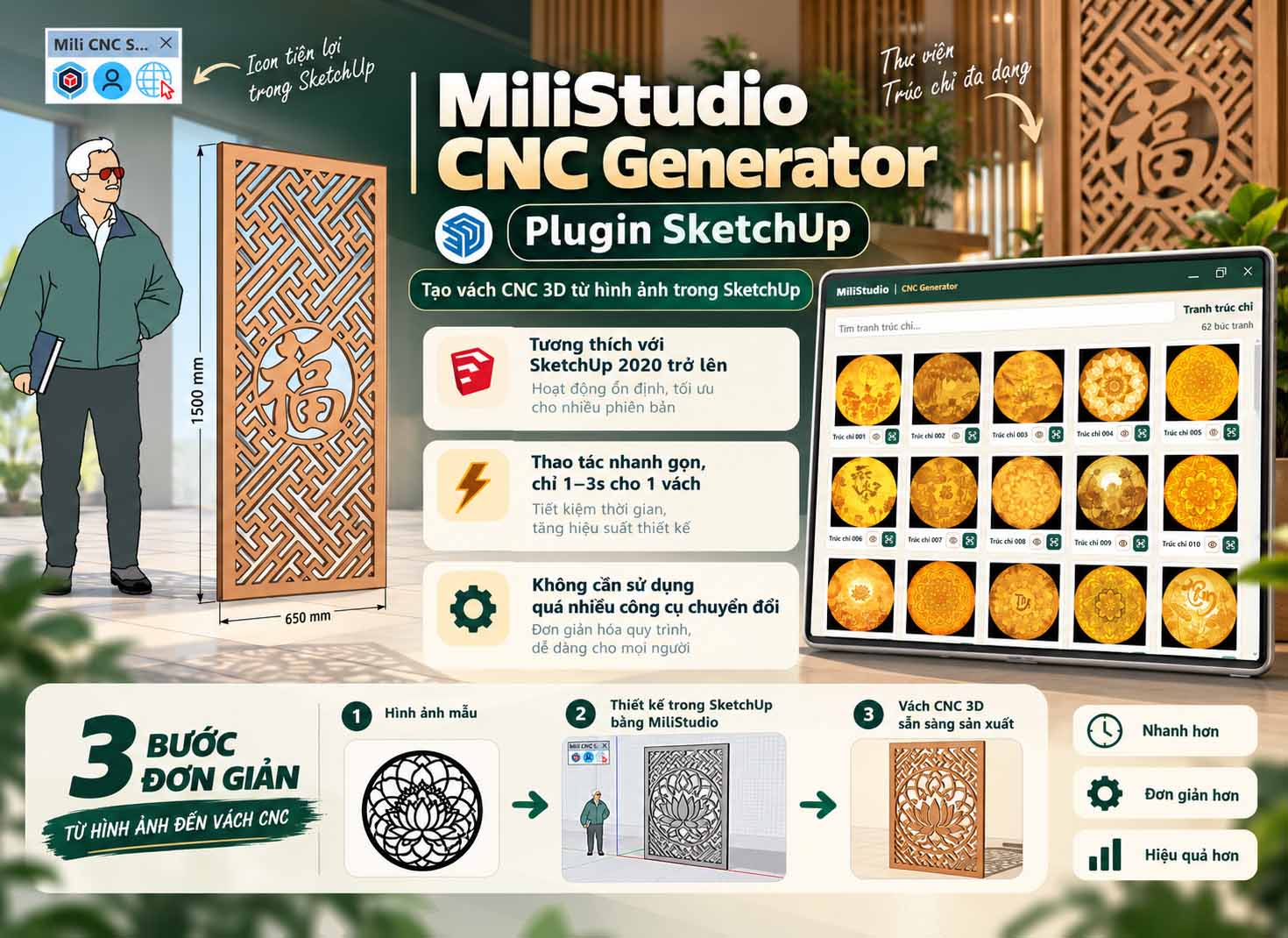
MiliStudio | CNC_Studio is a professional CNC decorative panel generator for Autodesk 3ds Max, designed to create CNC partitions and decorative pattern panels quickly and easily.

Main features

1- Create decorative CNC panels with just 1 click.
2- Flexible CNC pattern library with many available designs.
3- Customize CNC patterns directly and visually inside the interface.
4- Live editing allows you to see design changes immediately.
5- Create CNC decorative panels quickly in only a few seconds.
6- Adjust panel width, height, thickness, pattern and layout easily.
7- Export CNC designs directly to DWG and SVG files.
8- Supports both Corona Renderer and V-Ray workflows.

Compatibility

3ds Max: Autodesk 3ds Max 2020 or newer.
Renderer: Corona Renderer and V-Ray.

CNC_Studio helps reduce repetitive modeling work and makes it much faster to create decorative CNC partitions directly inside 3ds Max.


2. Installation & Account
Install the plugin
  1. Download MiliStudio_CNC_Studio.mzp.
  2. Open Autodesk 3ds Max.
  3. Drag and drop MiliStudio_CNC_Studio.mzp directly into the 3ds Max viewport.
  4. Follow the installation process shown on screen.
  5. Restart 3ds Max if required.
  6. Open MiliStudio | CNC_Studio and start using the plugin.
Activate account
  1. Open MiliStudio | CNC_Studio.
  2. Sign in with your MiliStudio account when requested.
  3. After signing in, your account information and available credit are displayed in the plugin.
  4. If additional credit is required, use the available account or credit purchase function.
License note
  • The plugin is licensed for use with a valid MiliStudio account.
  • Your account and credit information may be synchronized with the MiliStudio server.
  • Do not copy, redistribute, resell, edit, decompile, or reverse engineer the plugin.
  • Internet access may be required for account verification and online functions.
Make sure you are using a supported version of 3ds Max and have an active internet connection when account verification is required.

3. How To Use
Video guide
Basic workflow
  1. Open MiliStudio | CNC_Studio.
  2. Select a CNC pattern from the pattern library.
  3. Enter the required panel dimensions.
  4. Adjust width, height and thickness as needed.
  5. Customize the CNC pattern directly in the design area.
  6. Use the live controls to preview the result immediately.
  7. Create the CNC panel when the design is ready.
  8. Use the generated CNC panel directly in your 3ds Max project.
Video guide
CNC Pattern Library
  1. Open the CNC pattern library on the left side of the interface.
  2. Browse the available decorative CNC patterns.
  3. Select the pattern you want to use.
  4. The selected pattern appears in the design area.
  5. Customize the selected pattern before creating the final CNC panel.
Live customization
  1. Set the panel width and height.
  2. Adjust the panel thickness.
  3. Customize the selected CNC pattern.
  4. Adjust pattern position, layout and other available parameters.
  5. Preview changes directly while editing.
Export DWG & SVG
  1. Complete the CNC pattern design.
  2. Check the final panel dimensions.
  3. Click Export DWG to export an AutoCAD-compatible drawing.
  4. Click Export SVG to export a vector CNC file.
  5. Use the exported file for CAD editing or CNC production workflows.
CNC_Studio allows you to create, customize and export CNC decorative panels directly from one interface.

4. Credit, Export & Support
Credit rules
  • Some CNC_Studio functions may use the MiliStudio credit system.
  • Your available credit is displayed in the plugin interface.
  • Credit information is synchronized with your MiliStudio account.
  • If your credit balance is insufficient, the plugin may ask you to purchase additional credit.
Make sure your MiliStudio account has sufficient credit before using functions that require credit.
DWG & SVG export
  1. Create and customize the CNC panel.
  2. Check the final panel dimensions and pattern.
  3. Use Export DWG for AutoCAD and CAD workflows.
  4. Use Export SVG for compatible vector and CNC software.
  5. Always check the exported drawing before sending it to CNC production.
Plugin menu and support
  • Library: browse and select CNC decorative patterns.
  • Design: customize the selected pattern and preview the result.
  • Parameters: control panel dimensions, thickness and CNC settings.
  • Export: export the CNC design to DWG or SVG.
  • MiliStudio: access MiliStudio website and support information.
  • Account: view account information and available credit.

Website: https://itoolsmili.com
Product: MiliStudio | CNC_Studio
Author: MiliStudio
Compatibility: 3ds Max 2020 or newer
Copyright: Copyright (c) 2026 MiliStudio. All rights reserved.

Original price was: 558,000 ₫.Current price is: 99,000 ₫.

Guaranteed Safe Checkout

Features & Compatibility

Additional information

Customer Reviews